
Android guides
Master Crash on Google Play and the APK: which download do you need?
Compare the Master Crash Google Play link and APK package IDs. Identify your installed app, understand update requirements and protect existing data.
Rohan Verma · Updated · 4 min read
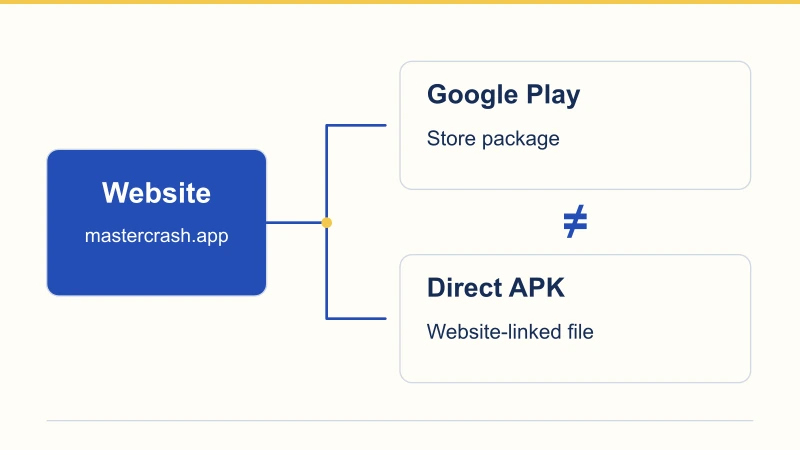
Two download entries, two app identities
Master Crash’s Google Play link and its direct APK point to different Android package IDs. The supplied APK retains its Teen Patti identity. Android uses an application ID to distinguish an app; the website name and icon do not settle that identity. Start with your purpose: installing the app shown in the Play listing, obtaining the documented APK, or updating something already on your phone. Those are different tasks. Neither a shared website nor similar branding establishes that the two apps have the same games, accounts or saved progress.
Keep each version and size with its own file
The table separates the supplied Play link from the APK inspected on 13 October 2026. Version 1.0, 58.9 MB and Android 5.0+ describe that APK only. They are not the Play app’s specifications. For Play, use the current listing and the compatibility information shown for your device. The date when a link was supplied is not an app release date. Even if two apps happen to display the same version number, that number alone does not make them the same product.
| Detail | Google Play entry | Direct APK |
|---|---|---|
| Android package | com.mastercrash.challengeavorquenix | com.teenpattimervion.zelvarix |
| Version | Read the current listing | 1.0; version code 1 |
| Download size | Check on your device | 58.9 MB; 58,913,222 bytes |
| Minimum Android | Check listing and device eligibility | 5.0+ (API 21) |
| Delivery | Google Play listing | Website link to CloudFront |
| Reference date | Link supplied: 24 November 2026 | File inspected: 13 October 2026 |
Identify the installation already on your phone
For an app already installed, open Android Settings, find Apps and select that app. Record the displayed name, version and installation source if shown. Menus vary by phone. If an “App details in store” option is available, follow it; a browser listing URL exposes the package after id=. Some phones also display a package name in app information. If yours does not, retain the available details and original download record. Do not select a similarly named search result as proof of which app you installed.
An update needs more than a matching name
Android requires an update to have the same application ID, a matching signing certificate or valid signing-key rotation, and a version code that is not lower. Google Play has further library and availability conditions. The visible version name is a separate value. Here the two IDs differ, so the linked Play app is not an in-place update to the supplied APK. Renaming a file or changing its icon cannot resolve that mismatch. Keep an existing installation while deciding whether you actually want a different app.
Choose a route for the intended app
For the Play-listed package, open the supplied Play link and inspect its current description, screenshots and device eligibility. For the documented APK, use the website’s APK download and file details. If you want to update a Play-managed installation, use Play Store → profile → Manage apps & device and inspect its available updates. That route is not a promise that the other APK will appear there. On a limited mobile-data allowance, identify the intended package first instead of downloading both simply to compare their names.
Check recovery before removing anything
If your existing app uses an account, note the account identifier and its documented recovery method before switching. Keep passwords and OTPs private. Look for any supported backup or export within that app; a screenshot records information but cannot restore app data. Google notes that not every app can back up and restore all its data. A phone backup is therefore no guarantee of recovering this particular app’s progress. Avoid uninstalling or clearing storage as a way to test whether the other download accepts your account.
If a download fails, keep the two routes separate
Record which entry you used and where it stopped: the Play listing, a browser download or the Android installer. Include the exact message and your phone’s Android version. A Play availability message does not explain an APK installation error. For the APK, a completed file’s checksum can be compared with the published file details; it does not establish safety. Keep Play Protect enabled and pause on a harmful-app warning. Changing download routes without identifying the problem can leave you with a second, unrelated installation attempt.
Questions readers ask
I already installed the APK. Why might Play offer Install?
The supplied APK and Play link identify different packages. An Install button on that listing is not an instruction to replace your existing app. Keep the old installation while you establish which product you need.
Can I use the same login and keep my progress?
This guide has no confirmed shared-account or migration arrangement for the two packages. A familiar sign-in screen or the same phone number does not establish one. Seek instructions for the specific app and recovery method before making changes.
If Play says the app is unavailable, should I use the APK instead?
Only if you independently intend to install the APK identified here. It is a different package, not a workaround guaranteed to provide the Play app. Save the availability message and check the listing’s device information first.
 Rohan Verma
Android downloads & troubleshooting
Covers APK file details, Android installation, version checks and practical update troubleshooting.