
Android guides
Android installation warnings: which message are you seeing?
Distinguish an installation-source prompt, a Play Protect scan, a harmful-app warning and an ordinary installer error. Save the right details for help.
Rohan Verma · Updated · 4 min read
Start with the message, not the colour of the box
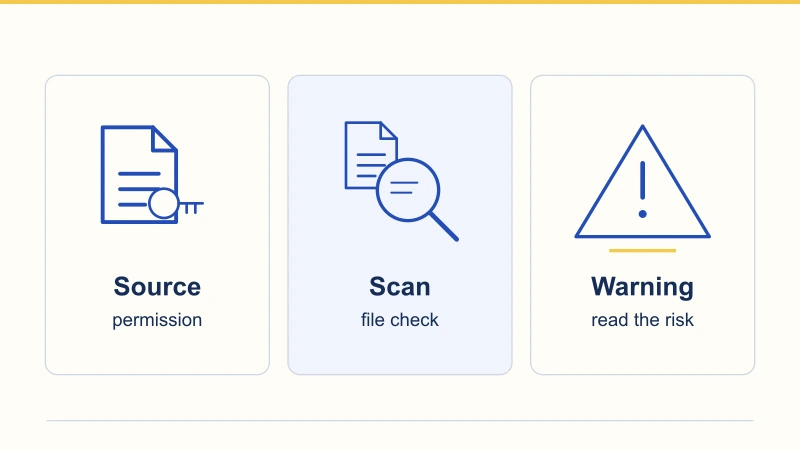
Two phones can display similar warning panels for different reasons. Before dismissing one, note its heading, full explanation, app name and available buttons. Also note where it appeared: in the browser, the Android installer or Google Play. “Download failed” and “installation blocked” describe different stages. A useful note says what happened immediately before the message, such as opening a completed file from Downloads. Translating every warning into “Android will not let me install” loses the detail needed to choose the next step.
Permission for a source is a separate decision
From Android 8.0, installation-source approval can apply to the browser or file manager requesting the installation. A prompt naming that source asks about its ability to request installs; it does not certify the APK. Read which app is named before deciding. Older Android versions and manufacturer interfaces differ, so a modern screenshot is not a universal Android 5 instruction. If the path is unfamiliar, use the device maker’s help rather than switching unrelated security options. Authorising a source and accepting a particular package remain different decisions.
An unfamiliar file may be offered a scan
Google Play Protect may recommend evaluating an app that it has not scanned before. That request is different from a result identifying a potentially harmful app. Google says a code-level scan sends app details for evaluation. Read the notice and wait for its result if you choose the scan. Record any later warning separately from the initial request. Keep Play Protect enabled; changing protection settings is not a way to establish what the file contains.
A harmful-app warning needs an answer from the publisher
If the message identifies a potentially harmful app or blocks installation on that basis, stop the installation and retain the exact wording. A download guide cannot establish that the warning is a false positive. Google provides an official app-verification appeal route for developers who believe their app was incorrectly classified. Ask the publisher to investigate that route and identify the affected version. A screenshot claiming that somebody else installed successfully does not resolve the warning on your phone, and a website logo is not a substitute for that investigation.
| Message family | First detail to preserve |
|---|---|
| Installation source | The browser or file manager named. |
| Scan offered | The initial notice and subsequent result. |
| Harmful app or security block | The complete warning and affected version. |
| Installer failure | The error text and any existing installation. |
| Device certification | The phone’s certification status. |
An ordinary installer failure is not one diagnosis
A brief “App not installed” message may omit the underlying cause. Android’s installer distinguishes storage problems, invalid packages, incompatibility and conflicts with an existing app, among other failures. Start with the completed download, free storage and Android version. If another copy is installed, record its version before doing anything that could remove data. Preserve the browser’s download status as well as the installer message. Repeated downloads are unlikely to explain a version conflict, while deleting an existing app merely to retry can create a separate recovery problem.
Device certification concerns the phone
Play Protect device certification and Play Protect’s app checks are separate. A “Device is not certified” message is not a verdict on one downloaded APK. Google’s documented place to inspect certification is Play Store → profile → Settings → About. Follow the device-specific guidance linked there if a problem appears. Turning off app protection does not fix certification. A different APK filename will not explain why the phone’s certification entry is missing or failing; record that entry as its own issue.
Keep a record someone can investigate
Save the exact message, phone model, Android version, time, source app and filename. Add whether this was a first installation or an attempted update. If available, keep the completed file’s size and SHA-256 alongside that note. Hide personal details before sharing a screenshot, and send it through a verified support route. These details describe the incident; they do not establish that a package is safe. This guide explains Android message types, without claiming an installation test or a Play Protect result for the APK linked by Master Crash.
Questions readers ask
Does approving a browser as an installation source approve every APK?
No. It permits that source to request an installation. It is not a verdict about the safety of each file.
Does a request to scan mean the file was found harmful?
Not by itself. Preserve the scan result separately; a request for evaluation and a harmful-app finding are different messages.
What should I send when installation fails?
The full message, device and Android version, filename, time, and whether you were installing for the first time or updating an existing app.
 Rohan Verma
Android downloads & troubleshooting
Covers APK file details, Android installation, version checks and practical update troubleshooting.