
Android guides
Android app permissions: declared, requested and allowed
Find an app’s permission settings, distinguish a declaration from granted access, and decide whether a request fits the feature you actually chose.
Rohan Verma · Updated · 4 min read
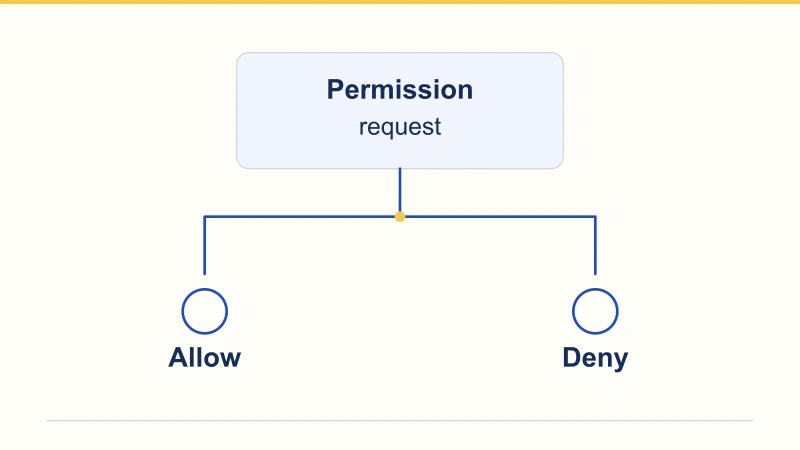
Three questions hide behind one permission name
An APK can declare a permission in its manifest. An app can request access while running. Your phone can currently allow or deny that access. Those are different observations. A camera permission in a file report does not, by itself, show that you approved a camera prompt or that recording occurred. Android also has permissions granted at installation and special access handled separately. There is no single pop-up that lists every capability. This article explains those distinctions without reporting a permission audit of the APK linked from Master Crash.
Find the settings for the app you mean
For an app already installed on your phone, Google’s current help uses Settings → Apps → select the app → Permissions. It also describes a Permission manager under privacy settings for reviewing one permission across apps. Menu names vary, and Google notes that some Pixel instructions require Android 11 or later. Confirm the app name in the heading before changing anything. A browser’s permissions page is about the browser, not automatically the downloaded app. If two apps have similar names, record the version and app details instead of choosing by icon alone.
Older Android versions do not offer the same choices
Android introduced runtime permission requests in Android 6.0; Android 5.1 and earlier use an older model. A package’s minimum Android requirement does not mean every modern privacy control exists on that minimum version. The exact choices also depend on the permission and the app. When a guide shows an option absent from your phone, do not search for a replacement switch with a similar name. Identify your Android version first, then use your manufacturer’s instructions for that device. Missing one newer option is not evidence that the APK is broken.
Decide in the context of the feature you chose
Imagine deliberately opening a document-scanning feature and receiving a camera request. If the purpose makes sense, a while-in-use choice, where offered, limits access to using that app. Now imagine merely reading instructions and receiving an unexplained contacts request. Declining while you seek an explanation is a reasonable first response. These are examples, not features attributed to this APK. A permission can be relevant to an optional feature without being necessary for every task. Ask what information the feature needs and whether you want to use that feature now.
| Illustrative situation | A proportionate first response |
|---|---|
| You chose a feature that takes a photo. | Consider limited access if the purpose is clear. |
| Contacts are requested while you read instructions. | Decline and ask why that access is needed. |
| An unfamiliar broad setting is requested. | Keep it unchanged until its scope is explained. |
A separate settings screen deserves a separate reading
Some access is managed through special settings rather than a normal permission pop-up. Android lists drawing over other apps and broad storage access among examples. Accessibility settings are another sensitive case: Google explains that such access can let an app read screen content and interact on your behalf. That is a different capability from allowing a single camera action. If an app unexpectedly asks for a broad setting to complete an unrelated task, leave the setting unchanged and ask for a specific explanation. A generic “required to continue” sentence does not explain the scope.
After declining, observe what actually stops working
A refusal might leave one optional feature unavailable rather than prevent every part of an app from working. Describe the observed effect precisely: “I declined the camera request; the capture panel stayed closed.” That note is more useful than “all permissions are required”. Return to the task you intended and assess whether you need the blocked feature. If you later reconsider, review that one permission rather than enabling a whole list. Do not repeatedly grant access just to clear prompts without understanding what has changed between attempts.
Keep the request and your decision together
For an unclear request, save its full text, the action that triggered it, app version, Android version and your selected response. Add what happened next. If installation never completed, save the installer error instead; a settings page for another app cannot describe permissions of an app not yet installed. Remove private details from screenshots before sending them to a verified contact. Our examples are a way to organise a question. They do not claim that this APK requests contacts, camera or accessibility access, and they are not a report of testing it on a phone.
Questions readers ask
Does every permission produce an Allow/Deny pop-up?
No. Android distinguishes installation-time, runtime and special permissions; their approval paths differ.
Can I decline an unexpected request?
Yes. Observe which feature becomes unavailable and seek an explanation before deciding whether you need that access.
Why does my phone lack a menu shown in this guide?
Android version, manufacturer and permission type affect the available controls. Some current Google instructions apply only to newer versions.
Can browser permissions describe an app that failed to install?
No. Save the installer error and file details; the browser’s permissions belong to the browser.
 Rohan Verma
Android downloads & troubleshooting
Covers APK file details, Android installation, version checks and practical update troubleshooting.